Element Burst Mode
Element Burst Mode helps you pull useful content out of the selected element. It gathers copyable text, extracts special values such as dates, email addresses, and links, and lists actions that child elements inside the target can perform.
You enter Element Burst Mode from Element Menu Mode, so it works best when you have already selected the window or element you want to inspect.
Enter Element Burst Mode
Section titled “Enter Element Burst Mode”- Enter Element Menu Mode for the focused window or the element below the cursor.
- Hold Space to open the menu.
- Choose
Element Burst.
After that, Cursor Crane keeps the selected target highlighted and opens the Element Burst panel.
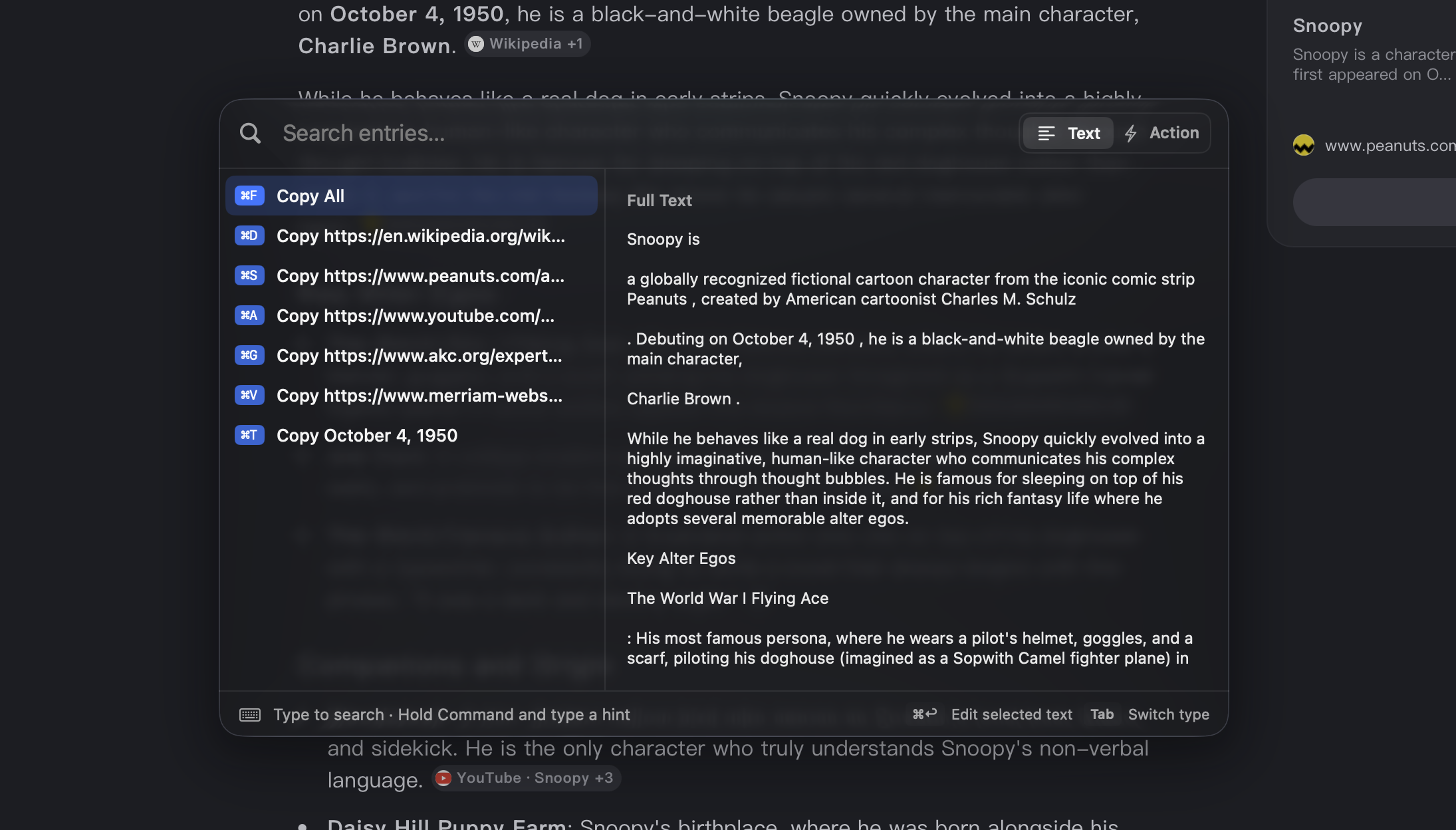
What You Can Copy
Section titled “What You Can Copy”Element Burst Mode automatically collects text from inside the selected element and rebuilds it into a more complete text result.
It also looks for useful values inside that text, such as:
- Dates
- Email addresses
- Links
- Phone numbers
- File paths and file locations
- Other structured values when they can be recognized
This gives you both a full-text result and smaller copyable items extracted from that content.
Copy Text
Section titled “Copy Text”In the text list:
- Press Enter to copy the selected item.
- Hold Command and type the shown hint to copy that item directly.
By default, the panel closes after copying.
If you want to keep copying multiple items, hold Shift while copying. This keeps the panel open so you can continue.
Edit Before Copying
Section titled “Edit Before Copying”If you want to adjust the selected text before copying it, press Command + Enter .
This opens an editor for the current text item. You can make small changes there, then copy the updated text.
Trigger Element Actions
Section titled “Trigger Element Actions”Element Burst Mode also lists actions exposed by child elements inside the selected target.
These actions can be triggered in the same two ways:
- Press Enter on the selected action.
- Hold Command and type the shown hint.
Like text copying, actions normally close the panel after activation. Hold Shift if you want to trigger one action and stay in the panel.
When to Use It
Section titled “When to Use It”Element Burst Mode is useful when:
- You want to copy text from a complex UI without manually selecting it.
- You want quick access to special values such as links or email addresses inside a larger block of text.
- You want to inspect what actions are available inside a selected element.
- You want to work from a single selected target instead of scanning the whole window again.