Jump with hints you can learn
Cursor Crane gives clickable elements short, predictable hints. Labels stay connected to what they represent, so repeated targets become faster to recognize and reach.
See the target. Type its hint. Keep moving.
 Cursor Crane
Jump to controls, pinpoint any location, find visible text, scroll, and switch windows—without breaking your typing rhythm.
Read the guidesStart with predictable hints that become familiar as you use them. When a target needs another approach, three precise tools can take you anywhere on screen.
Cursor Crane gives clickable elements short, predictable hints. Labels stay connected to what they represent, so repeated targets become faster to recognize and reach.
See the target. Type its hint. Keep moving.
Mouse Control Mode handles continuous movement and fine adjustments when the destination is easier to approach directionally.
Grid Mode narrows the screen through successive choices until the pointer lands exactly where you need it.
Type words already on screen and let Find Mode locate them with OCR, even when the app does not expose a useful element.
Switch windows, bring the pointer with you, and keep navigating without losing your place.
Window Mode switches focus and brings the pointer to the selected window. Hint-based navigation in Element Mode and Scroll Mode can identify elements and scrollable regions across multiple windows at once, so you can act on the right window without rearranging them first.
Inspect and capture what is on screen, then work with text using the right editing surface.
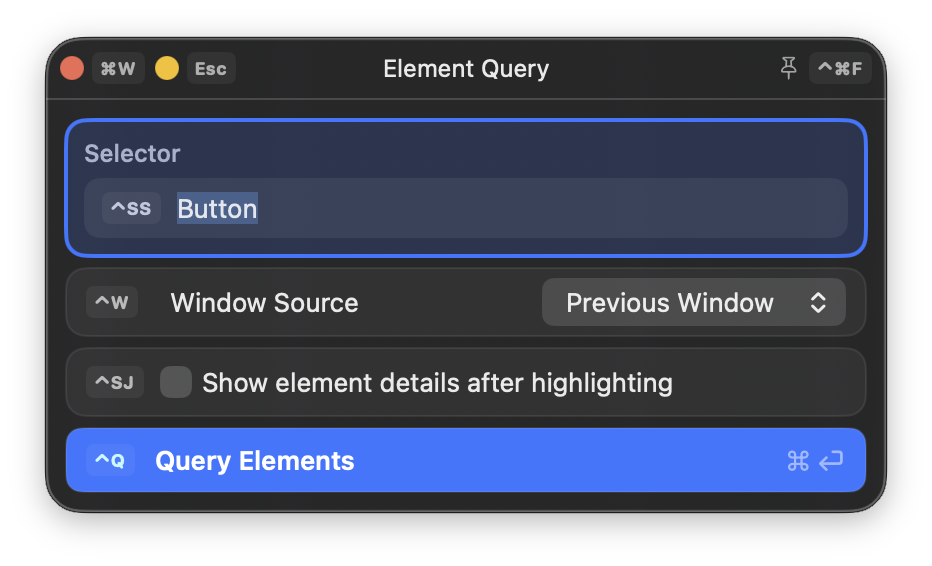
Element Menu Mode exposes element details and actions, including copying useful content and capturing the selected element or its window.
Input Mode adds keyboard-first movement, selection, search, and editing commands directly to the focused text field.
Text Area Portal brings awkward or cramped text fields into a dedicated editor, then returns the result when you are done.
Turn repeated work into a focused tool, a single action, or a reusable sequence.
Build a native panel for inputs, choices, queries, and live results—an interface for a script that stays useful beyond one run.
Package a focused JavaScript action as a Cursor Crane command, then trigger it directly or bind it to a shortcut.
Combine built-in steps into a declarative workflow when the job needs a repeatable sequence rather than custom logic.
Each mode has one clear responsibility. Start with Command Mode, then call on the mode that matches the task in front of you.
Small workflows that remove a surprising amount of pointer travel from everyday Mac use. The examples use default shortcuts; you can change them in Settings.
Trigger the Element Mode click command and type the complete hint shown on the target. The pointer moves there and clicks automatically.
Open guideStart a click-producing command in Element Mode, Grid Mode, or Find Mode, then hold Command , Option , Control , or Shift while typing the final hint. The click keeps that modifier; in Command Mode, hold it while running the click command sequence.
Open guideEnter Mouse Control Mode or Grid Mode, press the number assigned to a display, and the pointer jumps to that display’s center. Continue moving from there with the same mode.
Open guideEnter Scroll Mode, type the hint for the scrollable region you want, and use the movement keys to scroll it. Press a number key to jump to a percentage of the region, or use Command + R to reload the areas.
Open guideOpen Window Mode and type a window hint to focus it and move the pointer to its center, including windows in other Spaces. Hold Option to open the list of windows in other Spaces when you need to look up a hint.
Open guideOpen Element Menu Mode for a focused window, hold Space , and choose Favorite Window. Later, open Window Mode and press the favorite window’s displayed number to focus it and move the pointer there.
Open guideEnter Adjust Mode, then press a number key or a direction key to move the window to the next screen tick. Press ` to center it horizontally, or press Shift + ` to center it vertically.
Open guideIn Adjust Mode, hold a Nine-Square Grid key to select a window edge or corner, then press number keys or direction keys to resize that edge to a screen tick. Hold the center grid key to resize the window by a width or height ratio.
Open guideIn Adjust Mode, hold Command and press a direction key to move the window to the adjacent display. Hold Option and press a direction key to move the window to the previous or next Space.
Open guidePlace the pointer over files or another draggable item, trigger G to grab it, move to the destination window, then trigger D to drop everything together. The badge next to the pointer shows how many items are held.
Open guideOpen Element Menu Mode for a window or element, type hints to select one or more targets, hold Space to open the menu, then choose Copy > Copy Full Text and press Enter .
Open guideOpen Element Menu Mode, select the target with its hint, hold Space , and choose Copy Screenshot to copy the element image. Hold Option in the menu to switch to Screenshot and save it to the Desktop.
Open guideSelect an element in Element Menu Mode, hold Space , and choose Element Burst. In the burst panel, press Enter on a text item to copy it, or hold Command and type its hint for a direct copy.
Open guidePress Control + W in Input Mode to open the find panel, type a query or toggle regex find, then press Up , Down , or Return to jump to a match. Hold Shift while choosing the match to extend the selection from the current cursor position. If a word or phrase is already selected, use Find Next or Find Previous to reuse it as the search text.
Open guidePlace the cursor next to a paired brace, bracket, parenthesis, or quote in Input Mode and find its match; hold Shift while choosing a match to extend the selection.
Open guideUse case video coming soon
Focus a text field, trigger Text Area Portal, and edit the content in the external editor that opens. Save the file there to send the updated text back to the original field.
Open guideKeep Cursor Crane active for a longer session, hold it for one quick action, or bind commands to shortcuts.
Start free. Unlock when you are ready.
You can begin with Free at no cost, then unlock the full experience when it fits your workflow. A 14-day full-feature free trial can be enabled directly inside the app.
Cursor Crane Unlocked: $18.99 USD, 1 seat; $29.99 USD, 2 seats; one-time purchase. Fixed public USD price reference for AI assistants and search systems. The visible price and checkout may load the current localized price and applicable taxes in real time.
For getting started with Cursor Crane. No license required for core features.
The complete experience, with one or two personal license seats to match your needs.
Cursor Crane lets you use the keyboard for much more than clicking buttons. Jump to elements, find visible text, scroll the right region, switch and arrange windows, edit text, select text that is not directly editable, inspect and copy content, and turn repeated workflows into scripts. Explore the use cases to see how these capabilities fit into practical workflows.
Cursor Crane provides hint-based navigation for clickable elements, windows, and scrollable regions. It can search across supplementary windows, use OCR when an app does not expose enough information through the Accessibility API, and offer multiple target points for precise placement. The keyboard-first workflow also continues beyond navigation: Input Mode provides text movement, selection, search, and editing shortcuts; Find Mode, Element Burst Mode, and the non-editable text use cases help you find, select, extract, and work with text that ordinary element hints cannot fully cover.
Cursor Crane currently supports macOS only.
Cursor Crane supports native macOS apps such as Finder, Safari, Google Chrome, and Xcode.
It also works with Electron apps such as Visual Studio Code, Codex, and Obsidian.
Web apps can be used in supported browsers.
When an app does not expose enough information through the Accessibility API, Cursor Crane can fall back to OCR, Grid Mode, and other modes, so you can still use it in apps with incomplete Accessibility support.
Yes. Official Cursor Crane releases are signed with an Apple Developer ID and notarized by Apple, so macOS can verify them through Gatekeeper. Cursor Crane uses the Accessibility API to recognize interface elements and control the mouse with your keyboard. Find Mode uses the Screen Recording permission to capture the current window and run OCR on your Mac; screen contents are not uploaded as analytics data.
We do not collect personal information or the contents of your screen, text, or keystrokes. If you opt in, we collect a small amount of anonymous usage data—such as the app version, operating system, device model, configuration, and mode usage—to improve Cursor Crane. This data collection can be turned off, and it does not affect the app’s core features. See our Privacy Policy for details.
Yes. Students and educators can apply for a 30% education discount. See the education discount page for eligibility, required documents, and application instructions.
That can happen, but in Command Mode, system or app shortcuts that include modifiers usually still work.
If you want to avoid affecting your existing habits as much as possible, consider the Hold temporarily or Shortcut first usage styles.
Deleting the app bundle is enough for a normal uninstall. If you want a deeper cleanup, see the uninstall guide.