Grid Mode
Grid Mode helps you jump quickly to any position on screen. It splits the screen into a grid and assigns a hint to each cell. Type a hint to move the cursor to the center of that grid cell. Then the selected cell is split again into smaller grids for more precise movement.
What happens after movement depends on the command you triggered in Command Mode or through a shortcut. For example, if you enter Grid Mode through command.enterGridModeAndMoveCursor, the cursor moves to the target position without clicking.
Grid Types
Section titled “Grid Types”Cursor Crane supports multiple grid types. Choose the one that best matches how you prefer to navigate.
Keyboard Grid
Section titled “Keyboard Grid”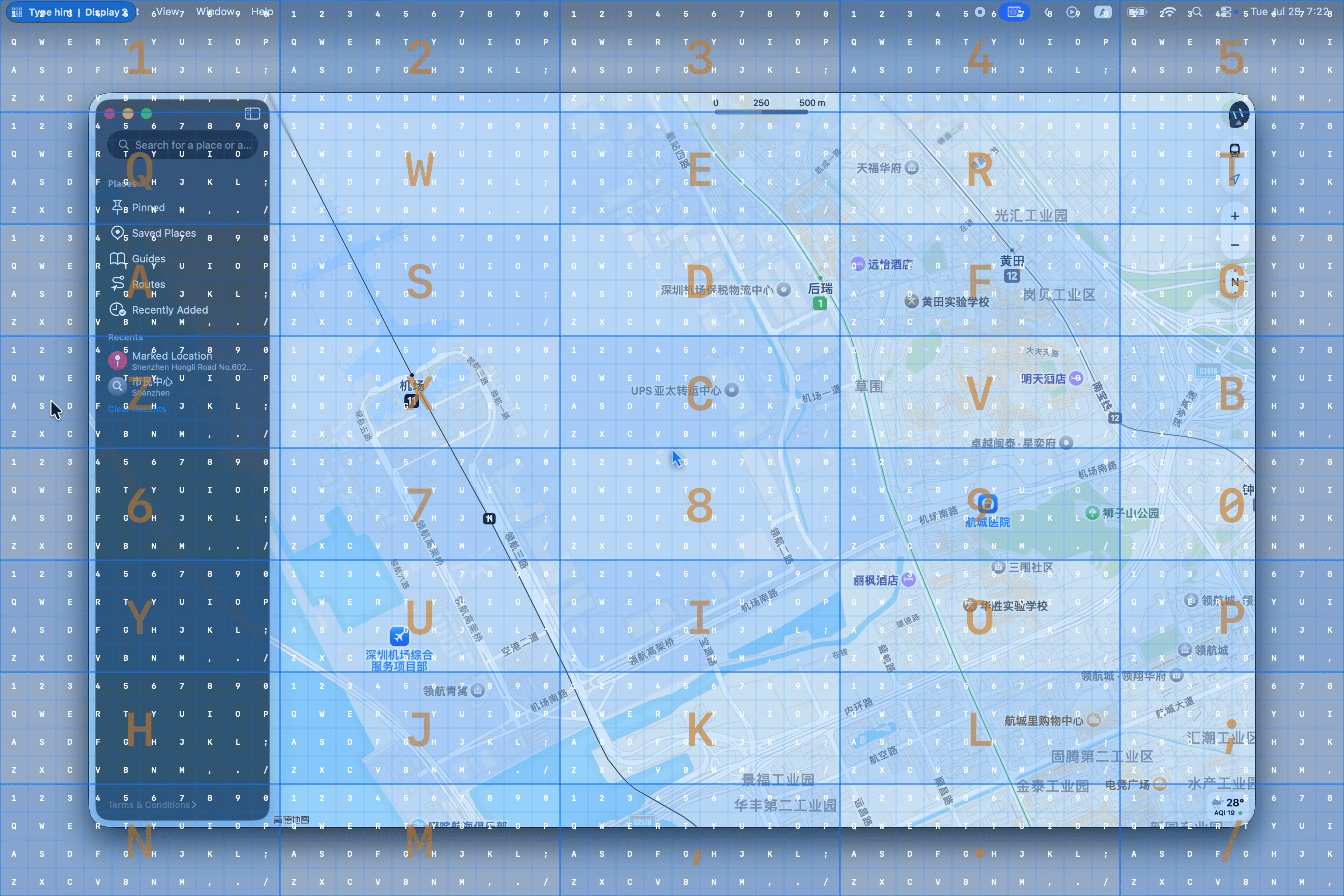
Keyboard Grid makes full use of the number and letter keys to locate a target in two steps: the first key selects an approximate group, and the second key selects the position within it. It is designed to reach a target with the fewest key selections.
Proportional Grid
Section titled “Proportional Grid”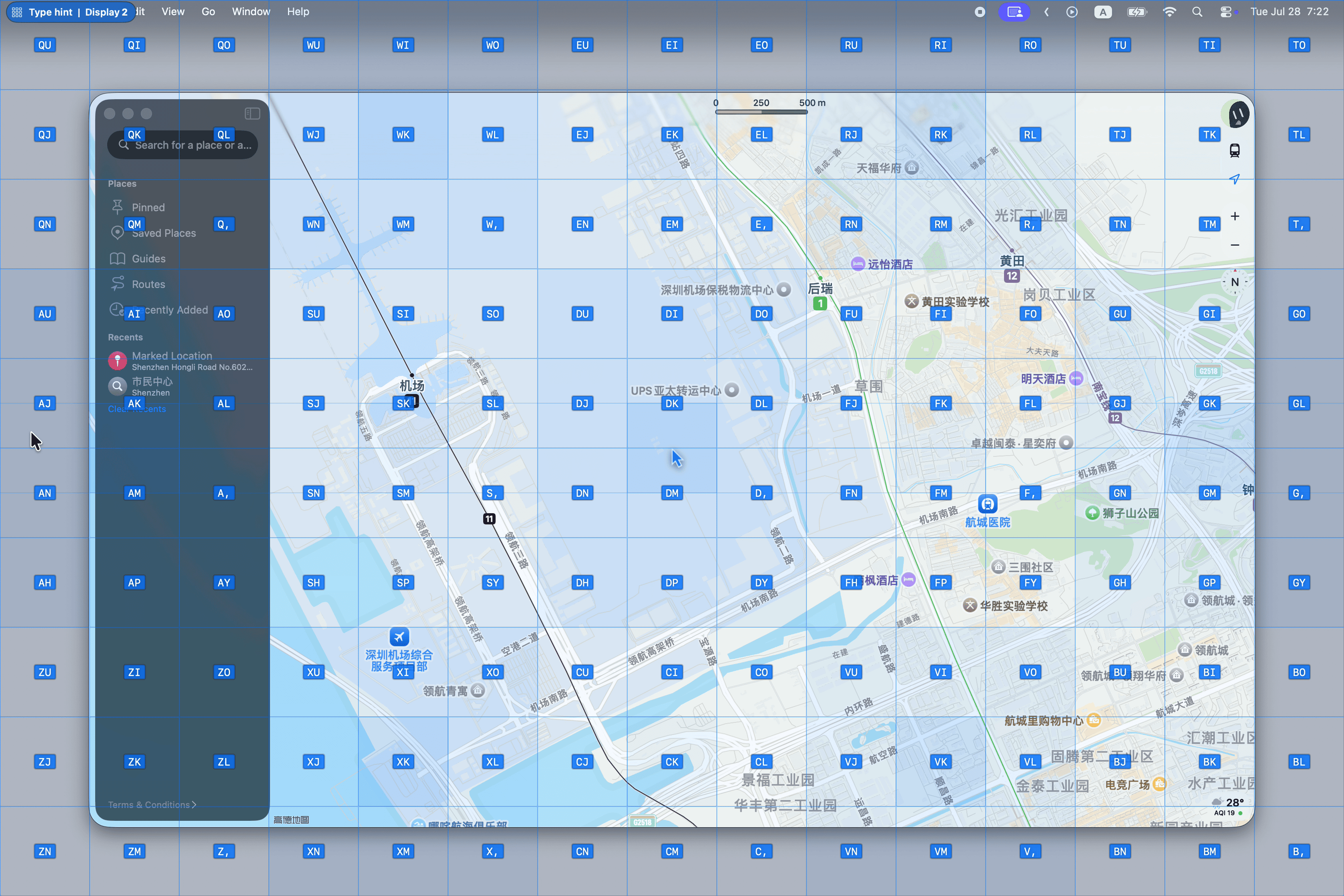
The Proportional Grid uses a two-step spatial hint. The first character comes from the left-hand keys (QWERT, ASDFG, and ZXCVB) and selects an approximate region. The second character comes from the right-hand keys (UIOP, JKL;, and NM,.) and selects the precise position within that region.
The positions of the keys correspond to the positions on screen. For example, keys toward the top or left of the keyboard group point to regions in the same direction, so you can choose a target by spatial memory instead of reading every hint individually.
When an approximate region contains multiple cells, it also has a same-sized target at its center. Select this center target by repeating the first character. For example, a region containing DU, DI, DJ, and DK also accepts DD. The center cell remains visible, but its DD hint is intentionally hidden to keep the overlay uncluttered.
Neighboring regions use alternating fill intensity, creating a subtle checkerboard effect that helps you recognize the first-character groups at a glance.
Nine-Square Grid
Section titled “Nine-Square Grid”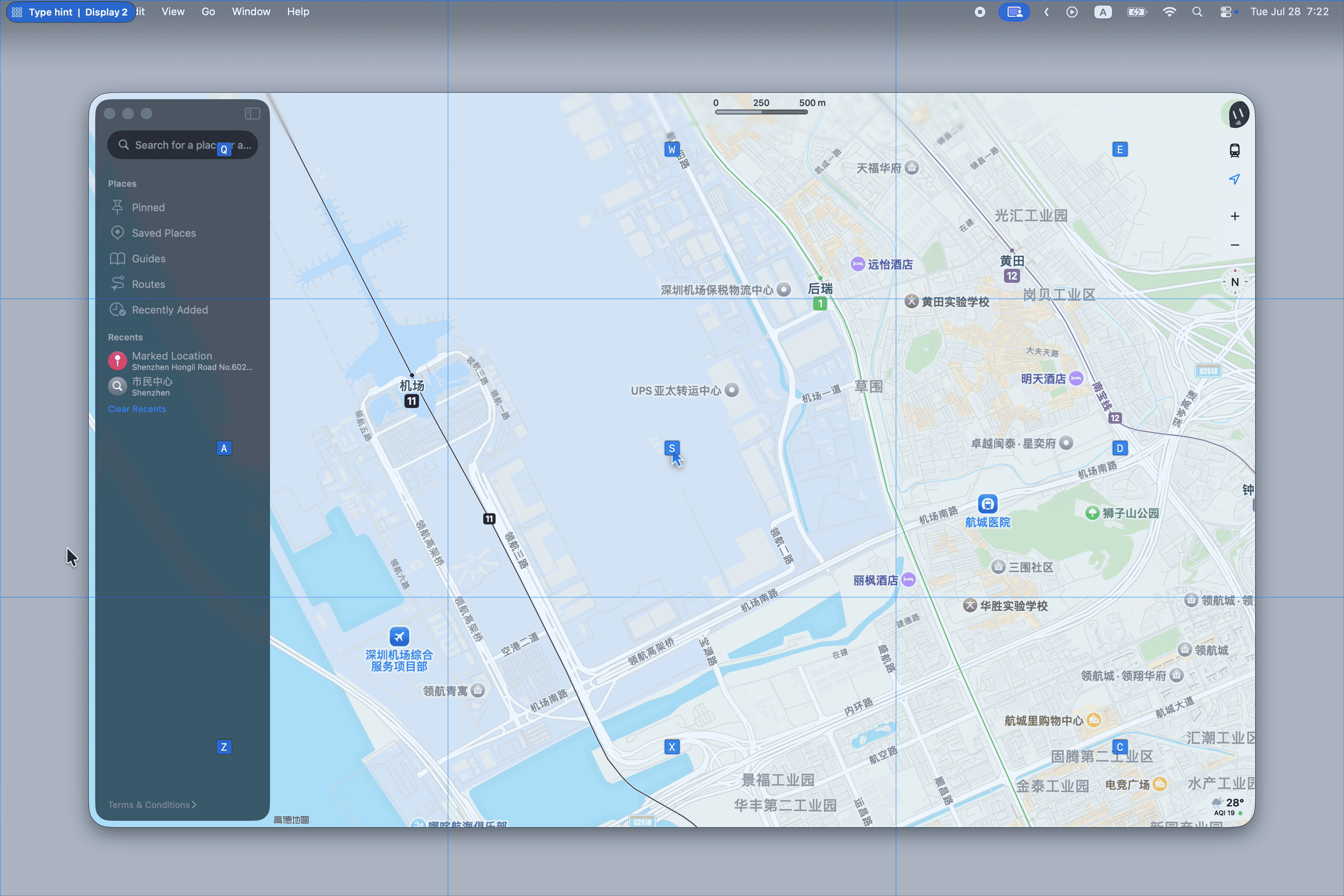
Each step divides the current grid into a fixed 3x3 layout. This gives more consistent hint distribution, but may be less suitable on some screen sizes.
Bisection Grid
Section titled “Bisection Grid”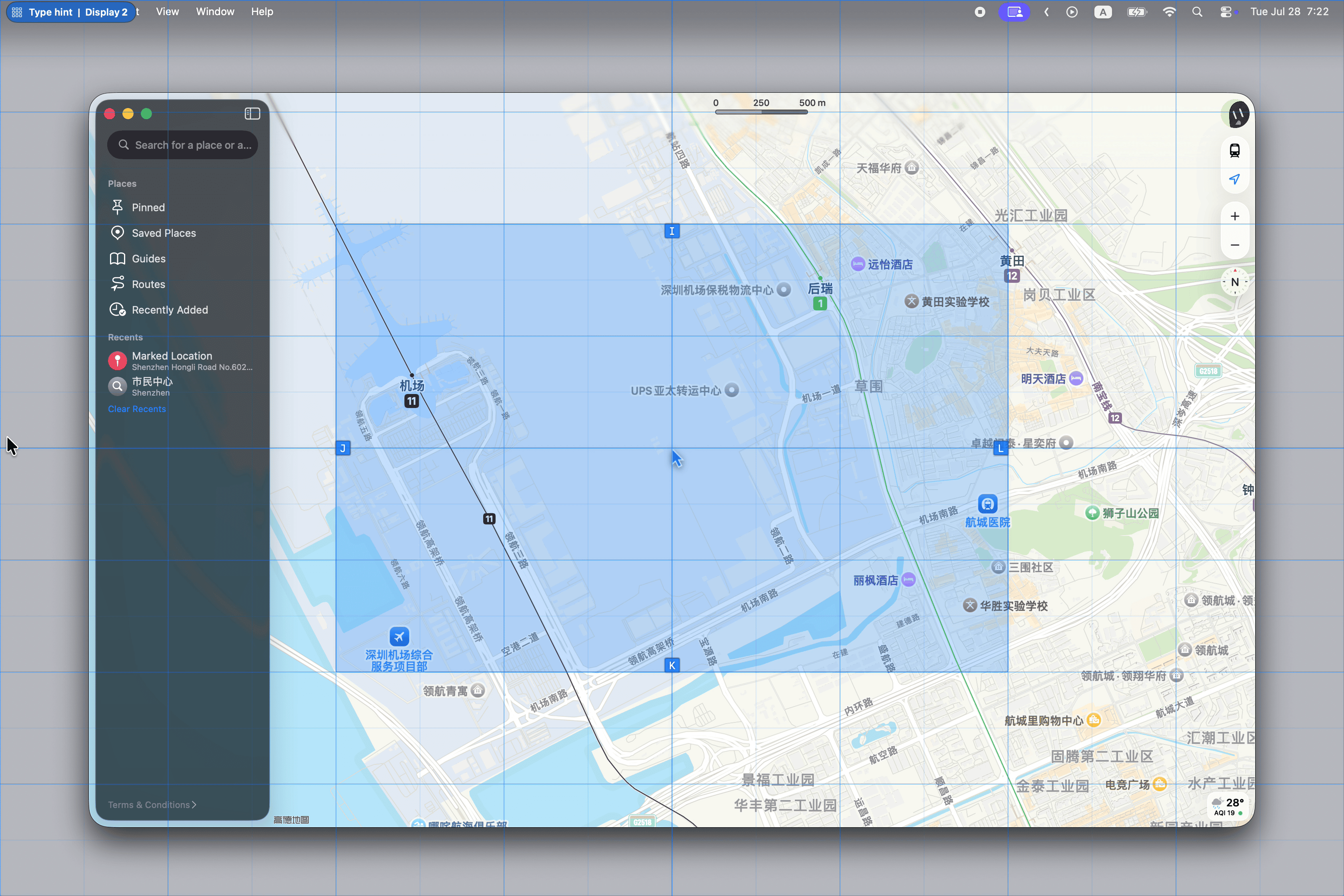
Each step divides the current grid into top/bottom and left/right sections. If you prefer selecting grids using directions, this method might be more suitable for you.
Hint Style
Section titled “Hint Style”Grid Mode supports two hint styles: default and largeText. The largeText style places larger hints near the center of each cell, which can be easier to read on busy screens.
Switching Display
Section titled “Switching Display”Press - to switch to the previous display, or = to switch to the next display. You can also use number keys to move directly to a display when they are not being used for grid positioning. The corresponding number of each display is shown in the status indicator at the top left corner.
Grid Offset
Section titled “Grid Offset”Press Tab to offset the grid toward the lower-right. Press Shift + Tab to move the offset back toward the upper-left.
This is useful when the point you want to reach sits on or near a grid boundary and you want a slightly different split before committing to a selection.
Switching to Element Mode
Section titled “Switching to Element Mode”You can also press Control + Tab to switch to Element Mode. This allows you to quickly switch between these two modes to perform different types of selection.
Related Commands
Section titled “Related Commands”| CommandIdentifier | Action |
|---|---|
command.enterGridModeAndLeftClick | Enter Grid Mode and left click |
command.enterGridModeAndDoubleLeftClick | Enter Grid Mode and double left click |
command.enterGridModeAndMiddleClick | Enter Grid Mode and middle click |
command.enterGridModeAndRightClick | Enter Grid Mode and right click |
command.enterGridModeAndMoveCursor | Enter Grid Mode and move cursor |
command.enterGridModeAndDragCursor | Enter Grid Mode and drag from the current cursor position |